> ## Documentation Index
> Fetch the complete documentation index at: https://mixpanel-edb78807-fix-callout.mintlify.site/llms.txt
> Use this file to discover all available pages before exploring further.
# Webengage
## Overview
Export Mixpanel cohorts to WebEngage to create custom segments that you can apply in your WebEngage campaigns. Manage the WebEngage integration from the Mixpanel integrations page.
## Permissions
You must be a Mixpanel project admin to enable the WebEngage integration.
## Enable the Integration
To enable the integration:
1. Select **Settings > Integrations** tab in the bottom left navigation bar of Mixpanel.
2. From the Integrations page, select the WebEngage dropdown, and select **Connect**.
3. Enter the [WebEngage API Key](https://docs.webengage.com/docs/rest-api-getting-started#getting-your-credentials) from your WebEngage dashboard.
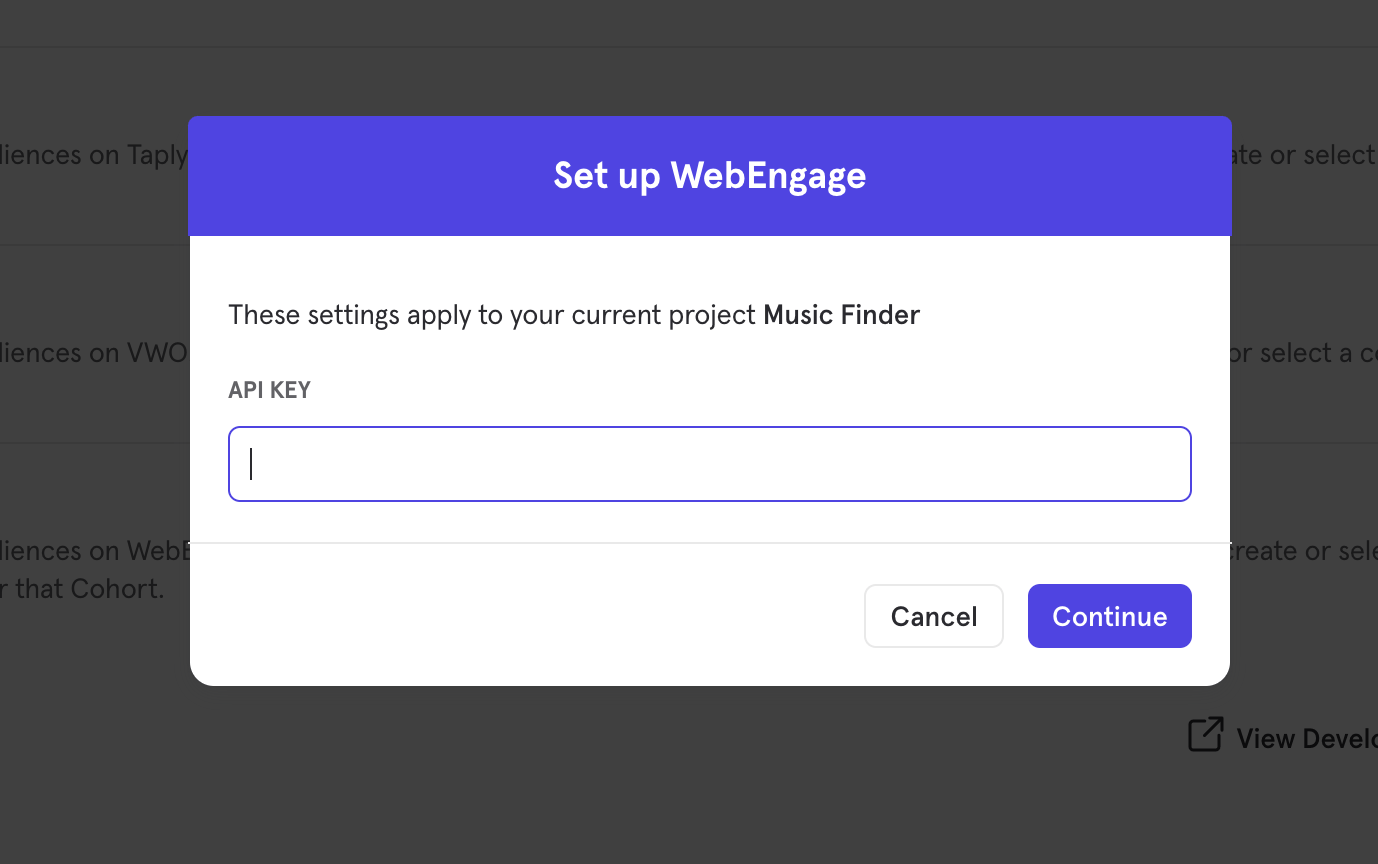 4. The WebEngage integration will show a **Connected** tag in the UI once the connection succeeds.
## Matching Users between WebEngage and Mixpanel
Mixpanel only exports identified user profiles to match to WebEngage - users without user profile properties (i.e. anonymous users) will not export.
The exported users are properly mapped in WebEngage's system only if the resolved distinct\_id in Mixpanel and the User ID in WebEngage have the same value. If no match is found, WebEngage will create new user profiles for the users exported from Mixpanel.
## Export a Cohort
To export a Mixpanel Cohort to WebEngage:
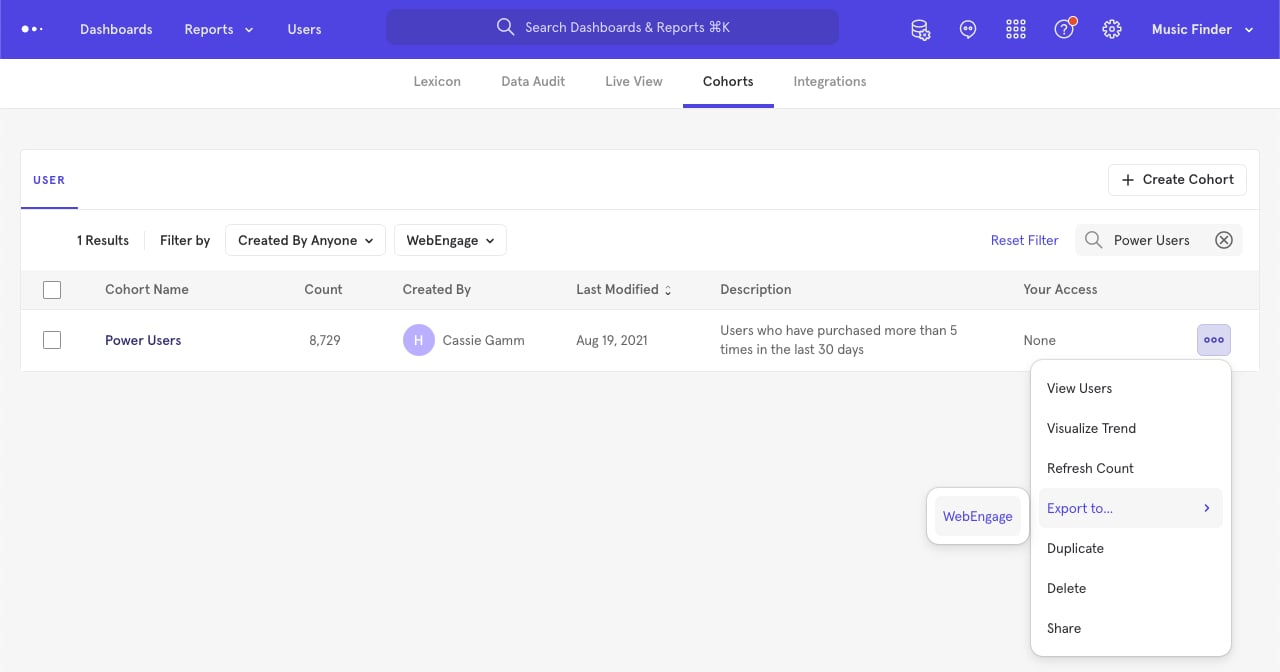
1. Navigate to **Lexicon**, then select the **Cohorts** tab to view all of your cohorts.
2. Select the cohort that you want to export. Click on the three-dot icon on the right side of the cohort.
3. Click **Export to WebEngage**. Select either one-time sync or dynamic sync. Click **Start Sync**.
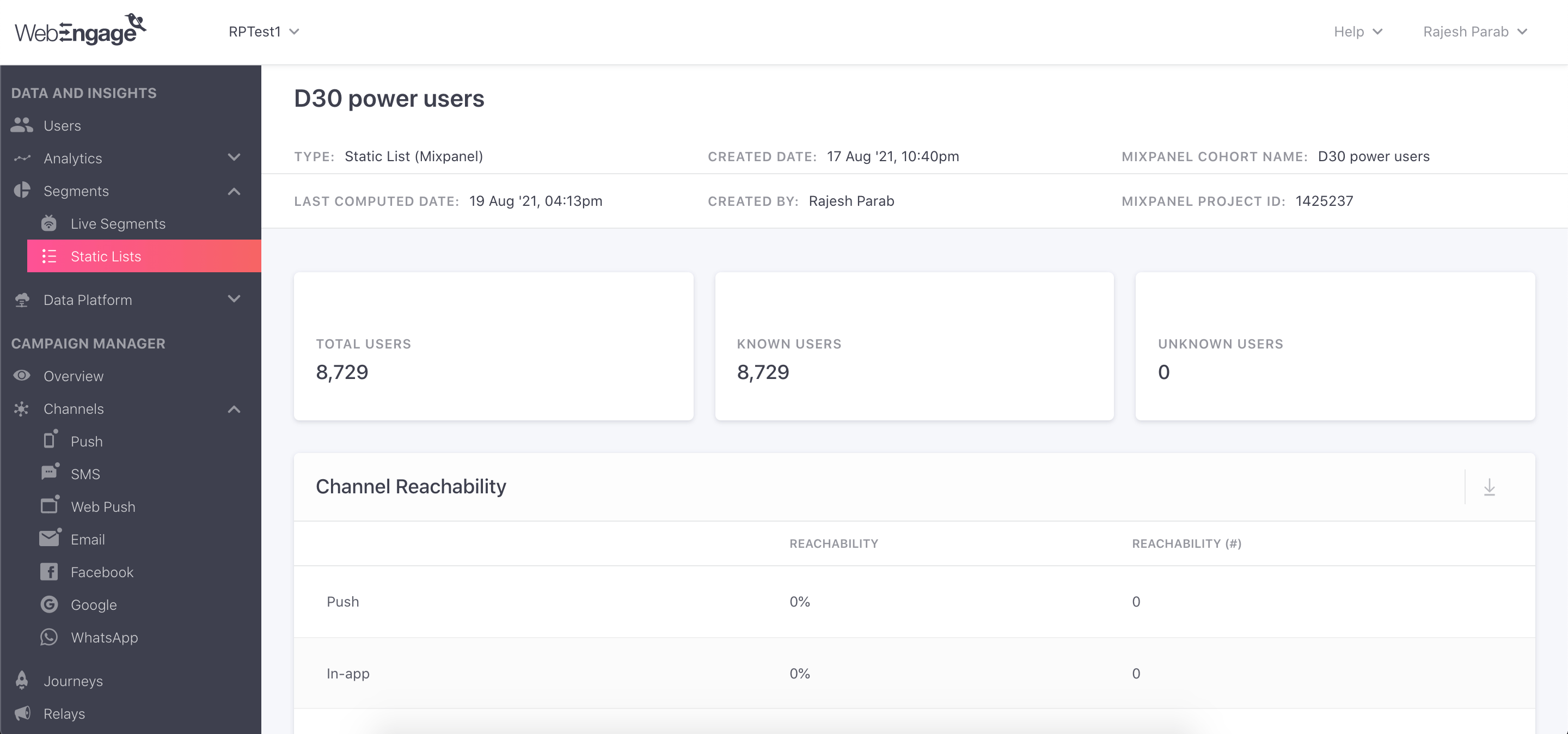
4. The WebEngage integration will show a **Connected** tag in the UI once the connection succeeds.
## Matching Users between WebEngage and Mixpanel
Mixpanel only exports identified user profiles to match to WebEngage - users without user profile properties (i.e. anonymous users) will not export.
The exported users are properly mapped in WebEngage's system only if the resolved distinct\_id in Mixpanel and the User ID in WebEngage have the same value. If no match is found, WebEngage will create new user profiles for the users exported from Mixpanel.
## Export a Cohort
To export a Mixpanel Cohort to WebEngage:
1. Navigate to **Lexicon**, then select the **Cohorts** tab to view all of your cohorts.
2. Select the cohort that you want to export. Click on the three-dot icon on the right side of the cohort.
3. Click **Export to WebEngage**. Select either one-time sync or dynamic sync. Click **Start Sync**.
 ## Sync Types
This integration supports two types of exports: one-time export and dynamic sync. When you generate a one-time export or dynamic sync, it overwrites the previous export with an updated export that reflects users who qualify for the cohort at the time of export.
### One-Time Export
In a one-time export, Mixpanel sends WebEngage a static export of users who currently qualify for the cohort. The cohort data will not be updated in WebEngage after the one-time export is complete.
### Dynamic Sync
In dynamic sync, Mixpanel initiates sync between a cohort and WebEngage every 30 minutes. The exported cohort will be updated every 30 minutes to reflect the most recent list of users in a cohort.
## Sync Types
This integration supports two types of exports: one-time export and dynamic sync. When you generate a one-time export or dynamic sync, it overwrites the previous export with an updated export that reflects users who qualify for the cohort at the time of export.
### One-Time Export
In a one-time export, Mixpanel sends WebEngage a static export of users who currently qualify for the cohort. The cohort data will not be updated in WebEngage after the one-time export is complete.
### Dynamic Sync
In dynamic sync, Mixpanel initiates sync between a cohort and WebEngage every 30 minutes. The exported cohort will be updated every 30 minutes to reflect the most recent list of users in a cohort.